The Christmas edit
Find your Christmas photo style: portraits, couples, and family
Use the people, mood, and composition in your picture to find a Christmas photo style that suits you.
Published
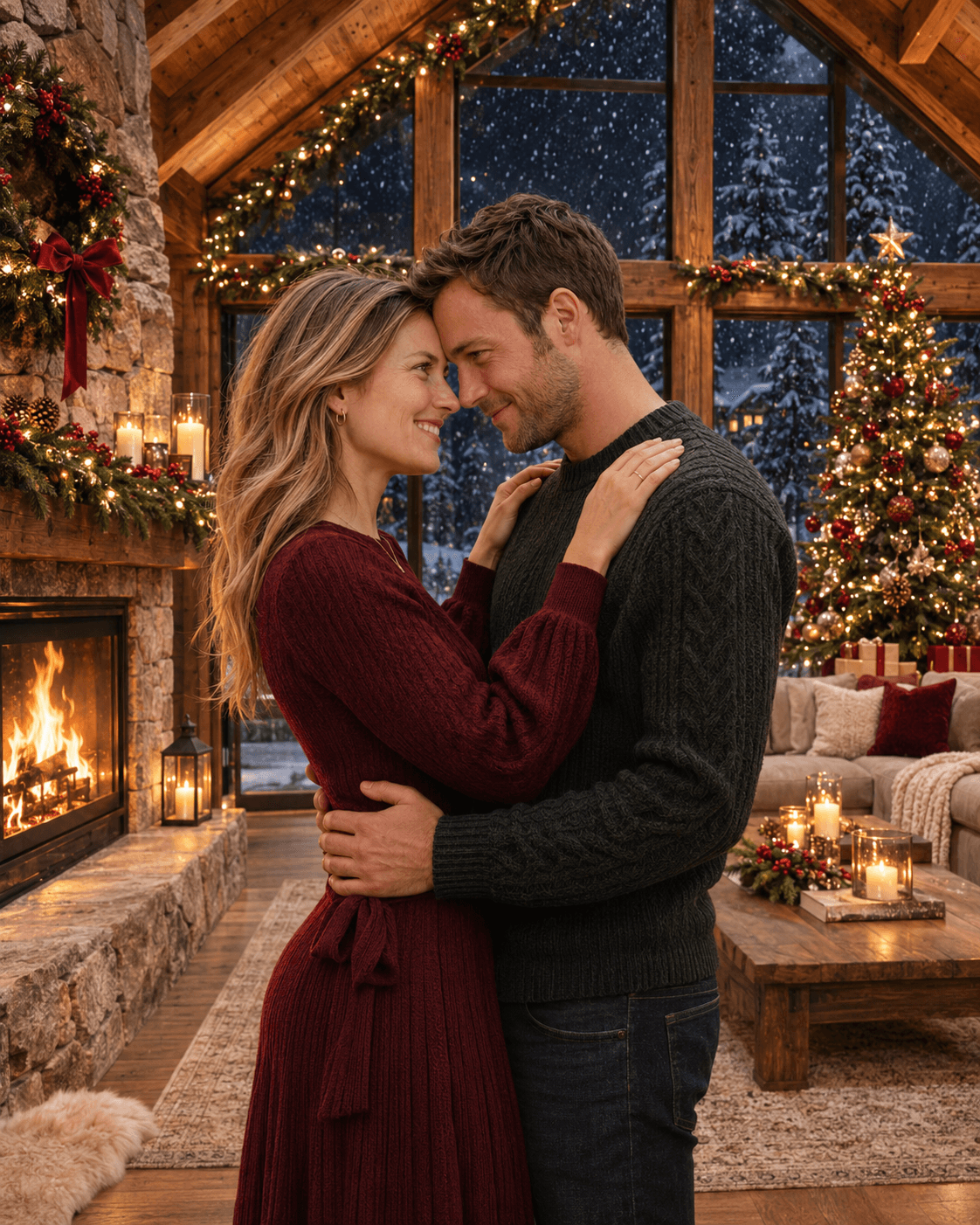
Start with the people in your photo and the feeling you want to express. Then compare the light, setting, and arrangement of people in the scene previews.
Scenes may be added or changed, so check the generator for the options currently available. This guide offers ways to choose; the pictures are style examples, rather than a complete scene list. Your generated result may also differ from the previews.
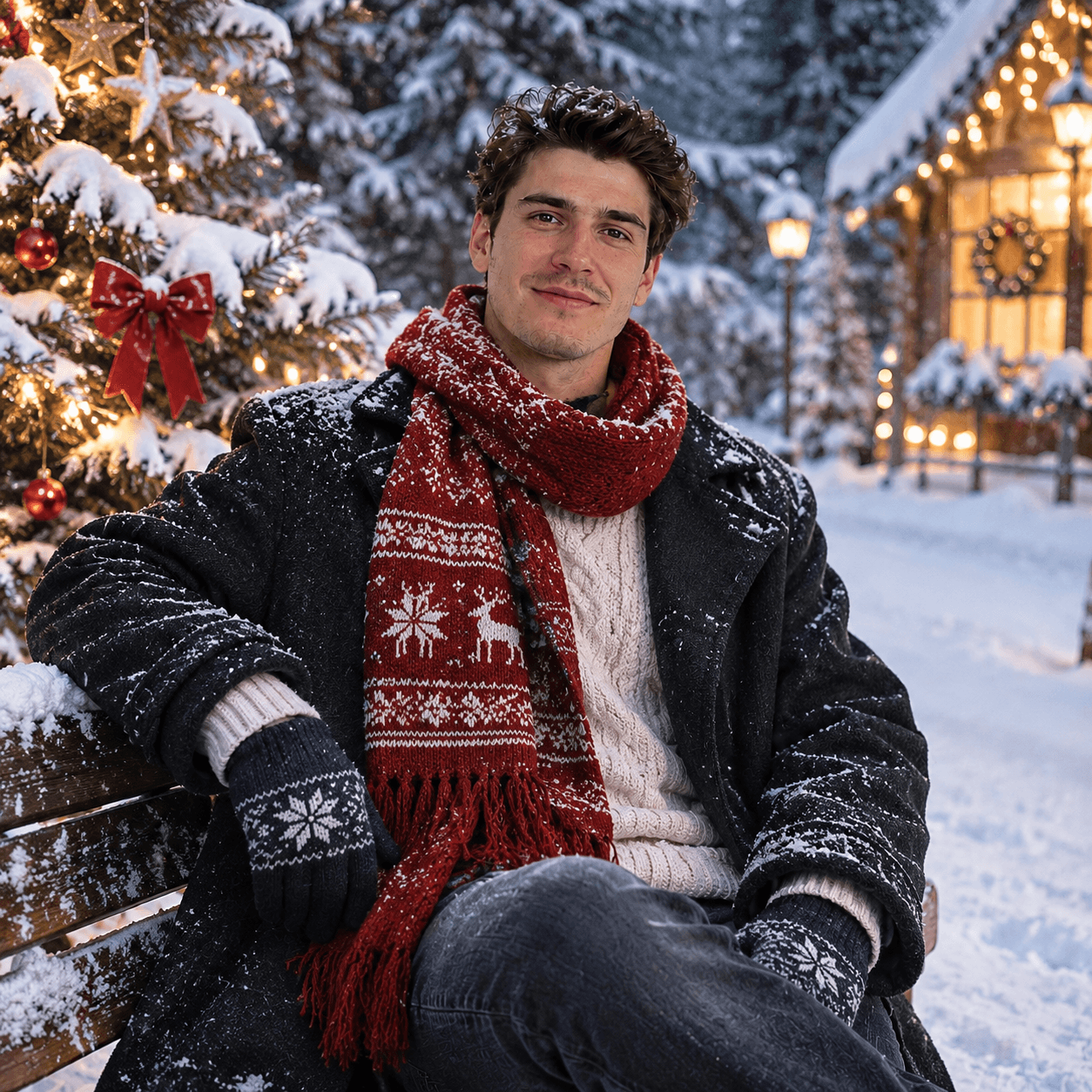
Single portraits: decide how much of the setting to show
To emphasize a face, expression, or festive outfit, look for previews with a larger subject and a simpler background. For a picture that tells more of a story, compare scenes that leave room for both the person and the surroundings.
Then consider the mood: soft warm light, a cooler winter atmosphere, or a more imaginative setting, for example. These are selection principles, not a fixed set of scene names. If keeping the original setting matters to you, look for an option focused on lighter edits, and still review what changes after generation.
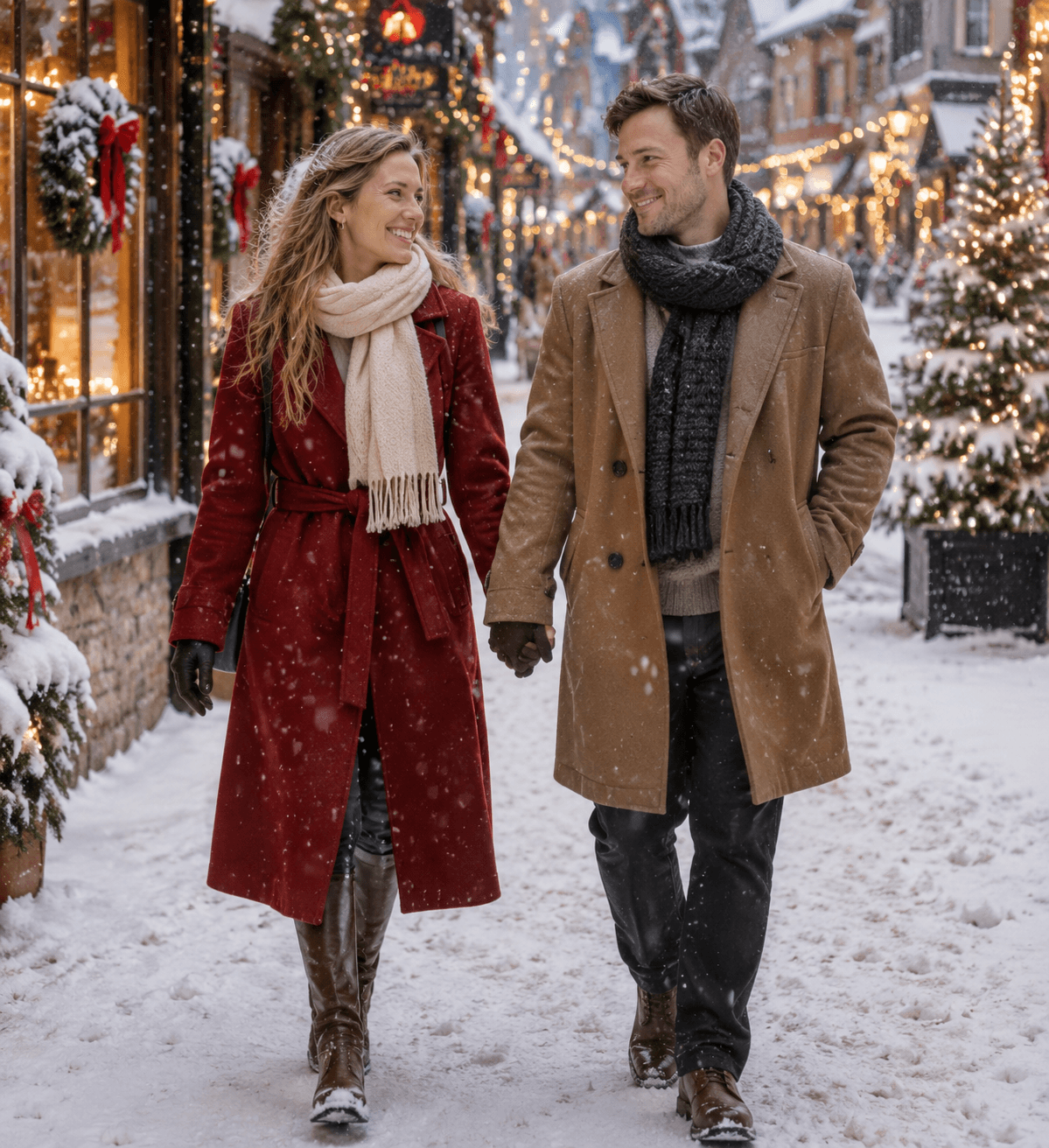
Couples: choose the interaction before the setting
Decide whether you want a candid moment, a quiet embrace, or a more formal picture together. Compare the distance between people, poses, and lines of sight in the previews. Then consider whether the lighting and surroundings suit the feeling you want.
Use a reference that shows both people clearly. Whichever scene you choose, check both faces and any hands or arms that overlap in the result.
Families: make room for everyone first
Start with the number of people and their positions in your reference photo. Look for scenes with enough space for the group. A more centered arrangement may suit a formal family portrait; an activity or relaxed interaction may suit a casual shared moment.
A clear shared reference photo is especially useful here. Give visibility of each person priority over extra decorations. After generation, count the people and check faces, hands, and overlapping bodies before saving the picture.

Let the composition guide the image shape
For a close single portrait, a square or vertical ratio can be a useful starting point. A wide family group may suit a landscape ratio.
The tool defaults to Auto, based on your uploaded image dimensions, and also lets you choose a supported ratio manually. A different ratio changes the requested composition; it does not guarantee that people or background details will fit exactly as expected.
Use a custom prompt for a specific idea
The Custom prompt option lets you describe a different Christmas scene, with an optional reference photo. Describe the setting, light, clothes, and mood you want. Keep the instructions focused rather than combining several conflicting scenes.
For example: “A warm Christmas living room with soft tree lights, cream knitwear, and a relaxed family-photo composition.” Without a reference photo, this is a text-based generation and does not use your own likeness.
When you are ready, choose a scene in the generator. For help getting started, follow the step-by-step guide.